

Appearance
Record
You can save anything you mirror as an MP4 video with sound, so you can keep it, edit it or send it to someone.
Start and stop
- In the mirror window: … › Record, or ⌘R (CtrlR).
- On the device’s page: Record › Start.
While it records, the window shows a red dot and the time. To stop, press the same key again, or choose Stop Recording. When Aelin says Recording saved, click Show in folder to find the file.
Where the files go
| Folder | |
|---|---|
| Mac | Movies › Aelin |
| Windows | Videos › Aelin |
| Linux | Videos › Aelin |
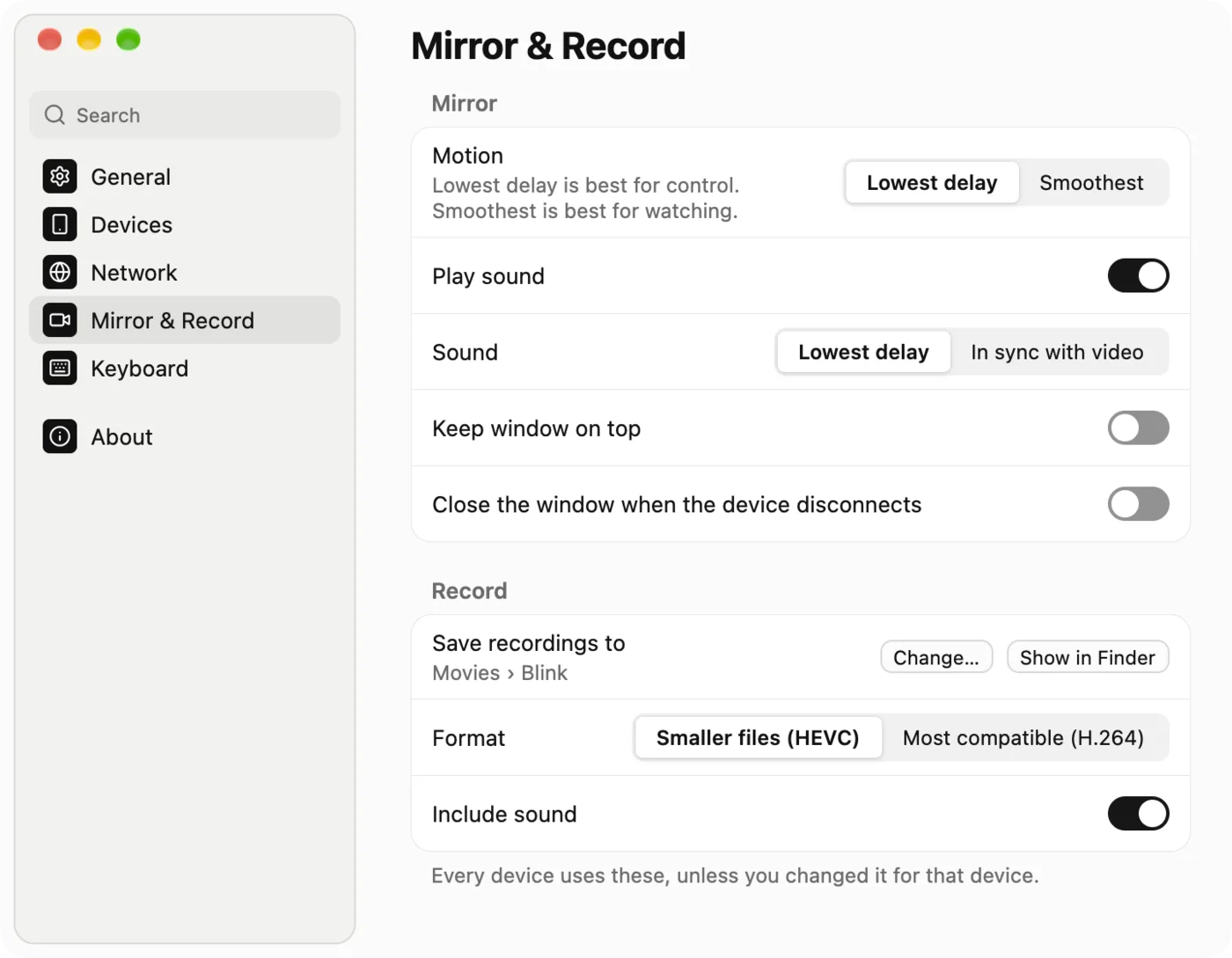
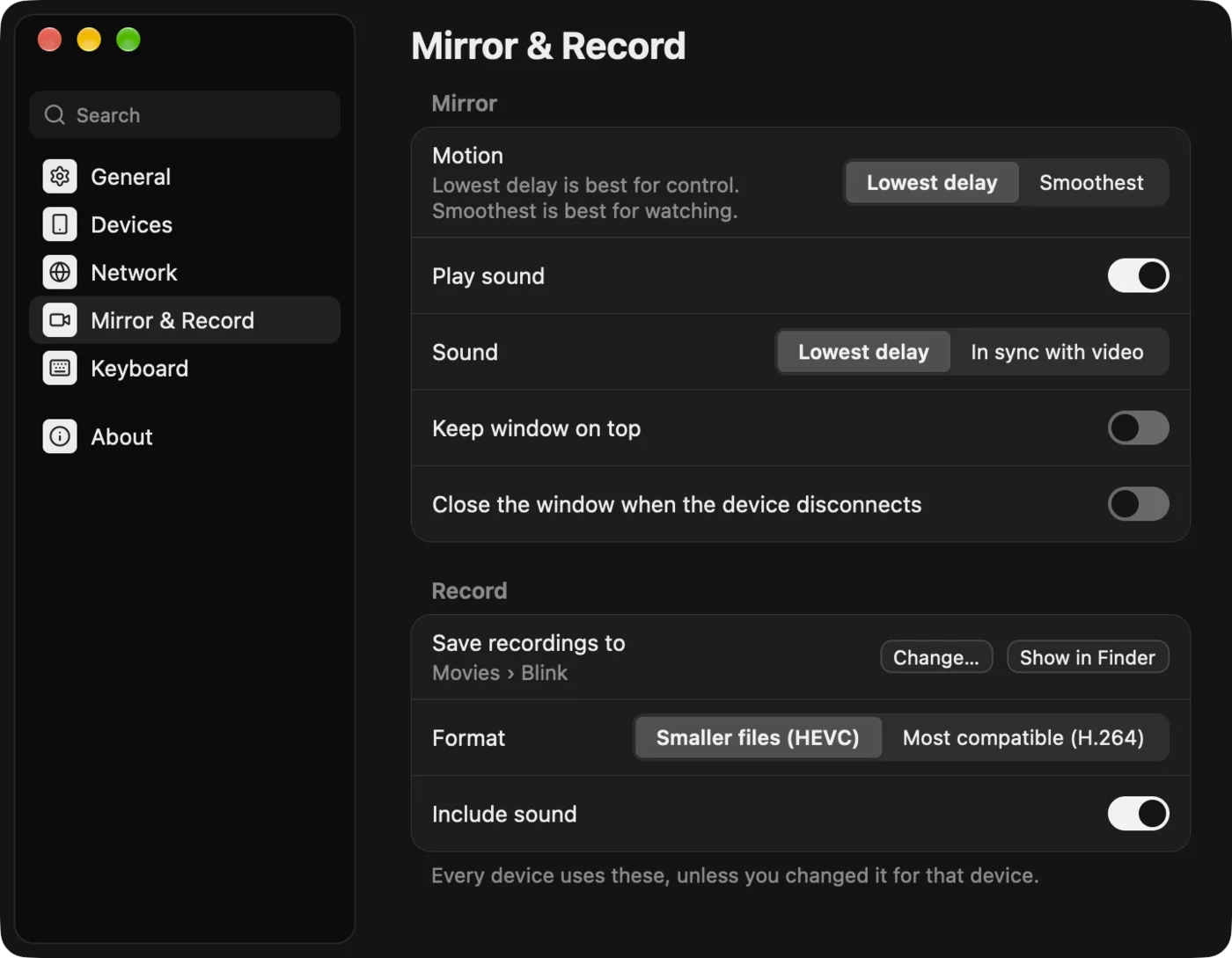
Each file is named with the device and the time, like Aelin Galaxy S20 5G 2026-11-24 at 21.14.08.mp4. If you want another folder, go to Settings › Mirror & Record › Save recordings to.
Format and size
Settings › Mirror & Record › Format:
- Smaller files (HEVC) is the default. It takes about 5 to 13 MB per minute.
- Most compatible (H.264) works in older players and editors.
Include sound is on by default. A phone records its own sound. This Mac, This PC and This computer record the computer’s sound, never the microphone.
Good to know
- On a Mac, if you turn the phone while recording, Aelin straightens the video after you stop (Finishing recording), so the whole file plays upright.
- If Aelin or the computer stops suddenly, the file still plays up to the last 2 seconds.
- Wait for Recording saved before you quit Aelin, so the file is complete.
- A screen wider or taller than 4096 pixels (a 5K display) can’t be recorded yet. Record a smaller window instead.