

Appearance
Wi‑Fi, no cable
After you plug the phone in once, it can mirror over Wi‑Fi, so you can leave the cable behind, and Aelin switches between Wi‑Fi and USB by itself.
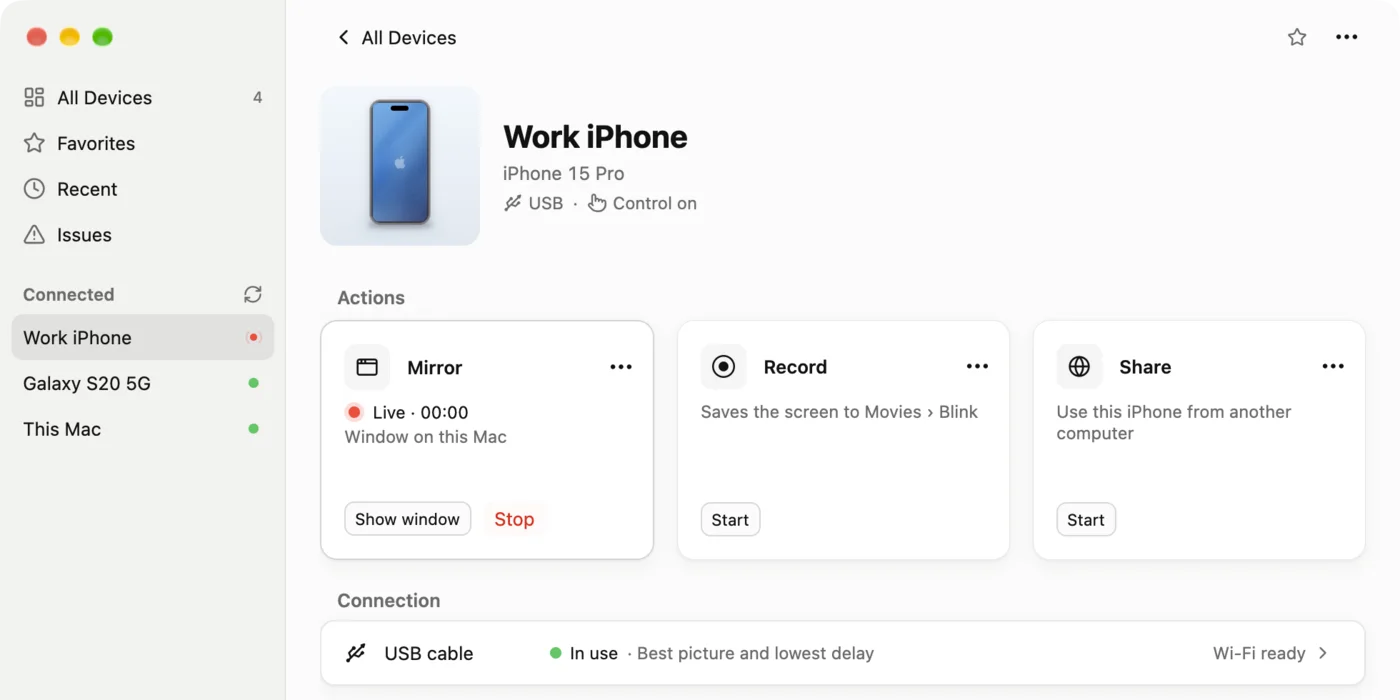
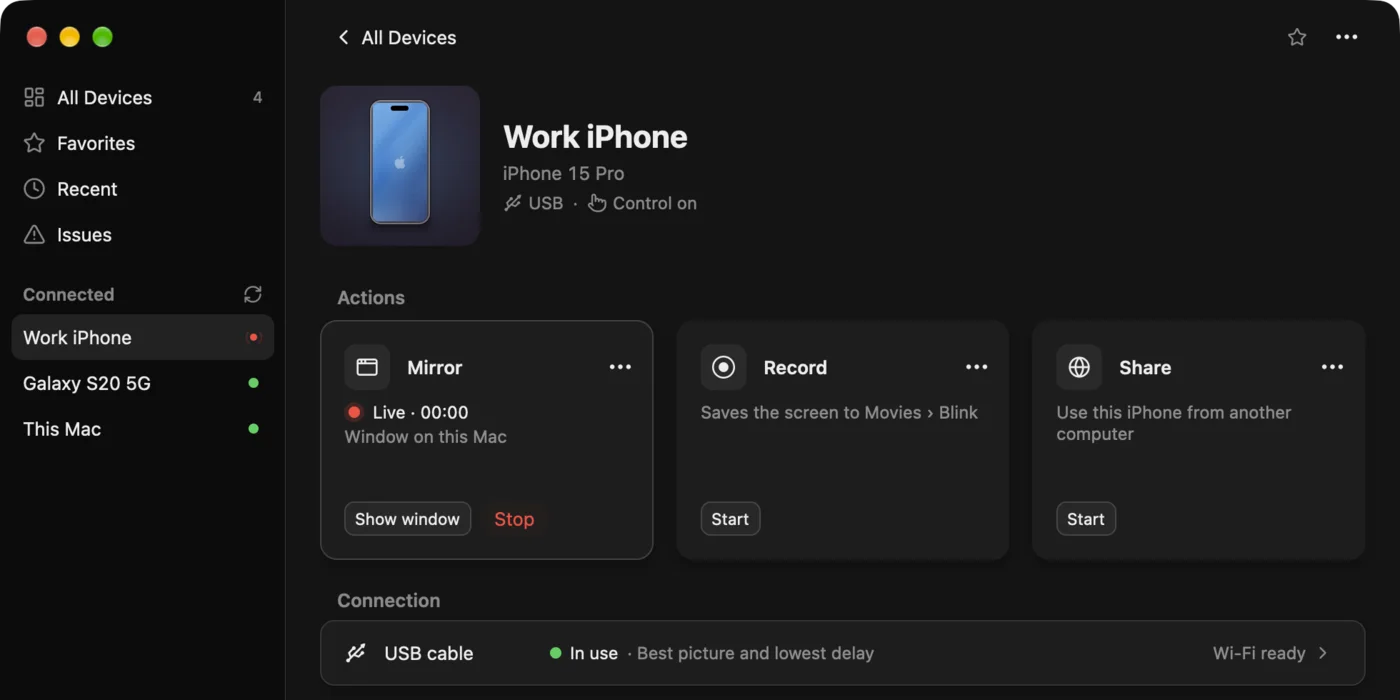
The phone and your computer must be on the same Wi‑Fi. USB still gives the best picture and the lowest delay, so Aelin uses it whenever the phone is plugged in.
Set it up
- Plug in the phone and unlock it.
- Open the phone’s page in Aelin. Under Connection, click Wi‑Fi not set up, then Set up.
- Aelin pairs your computer with the phone and tries Wi‑Fi once. Keep the phone plugged in and unlocked, because it takes a few seconds.
- When it says You can unplug it, you’re done.
From now on, you can unplug the phone and keep mirroring. When you plug it back in, Aelin moves to USB.
Limits
- iPhone and iPad: Wi‑Fi needs iOS 27. On iOS 26 you can mirror over USB only.
- Android: Wi‑Fi needs Android 11 or newer (Wireless debugging).
- A phone that has been asleep for a long time may stop answering on Wi‑Fi. Wake it, or plug it in.
Android without a cable at all
If the phone has never been plugged in, you can pair it over Wi‑Fi directly.
- In Aelin, click + (Add a device). An Android phone with Wireless debugging on shows under Nearby.
- On the phone, open Settings › Developer options › Wireless debugging and tap Pair device with QR code.
- Scan the code Aelin shows.
This way is new, so if it doesn’t work, use the cable steps above.